How to Use AI for Landscape Design: A Step-by-Step Guide
A practical guide on how to use AI for landscape design. Learn to combine preset templates and custom prompts to solve real-world yard constraints and planting issues.
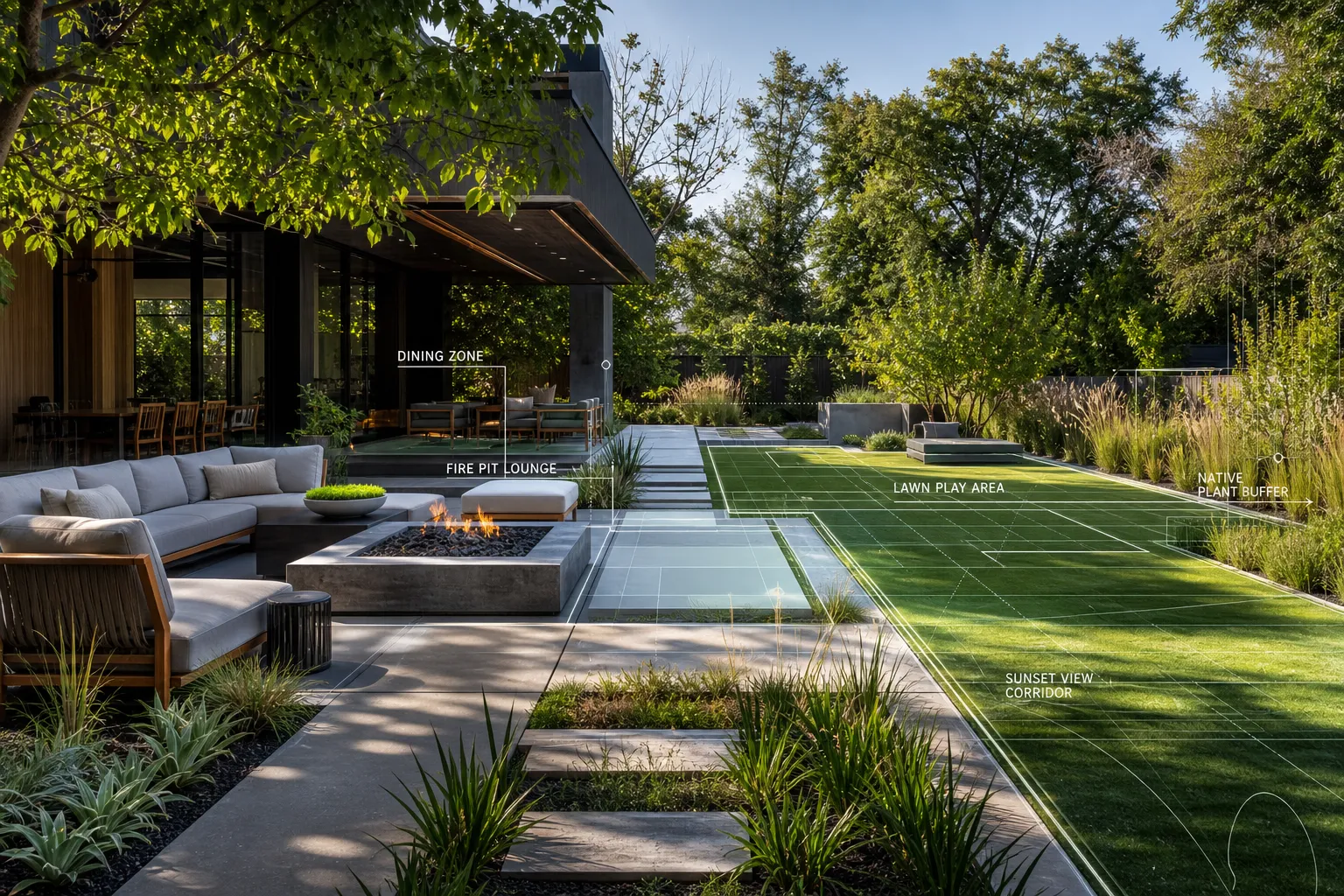
Using AI tools to plan your outdoor space can save thousands of dollars in design fees and hours of complex CAD drafting. However, simply uploading a photo and asking an AI to "design a beautiful backyard" often results in impractical layouts, chaotic material blending, and plants that cannot survive in your local climate.
To get an actionable, real-world blueprint from AI, you need a structured approach. This guide covers how to use AI for landscape design step by step, while solving the most common site-specific challenges.
Step 1: Identify and Fix the Two Main AI Landscaping Errors
Before generating images, you must account for the two core limitations of standard generative AI models in outdoor spaces.
The first is the plant-climate mismatch. AI models prioritize pixel aesthetics over botany, so they can easily place a tropical palm tree into a rendering for a yard located in a freezing northern region.
The second is the hardscape-softscape blur. A functional yard requires strict boundaries between hardscapes, such as patios, decks, concrete, and pavers, and softscapes, such as soil, grass, shrubs, and planting beds. Standard AI often blurs these together, creating layouts that are physically impossible to build or maintain.
To solve these issues, structure your design process using a two-tier workflow: Templates Mode for structural proportions, and Custom Mode for localized constraints.
Step 2: Use Templates Mode to Establish Spatial Proportions
The first practical step is establishing a structural baseline. If you lack design experience, starting with a blank slate often leads to an imbalanced layout where patios are too large, planting beds are too narrow, or pathways do not connect naturally to the house.
Templates Mode solves this by applying verified architectural grid ratios directly to your uploaded yard photo.
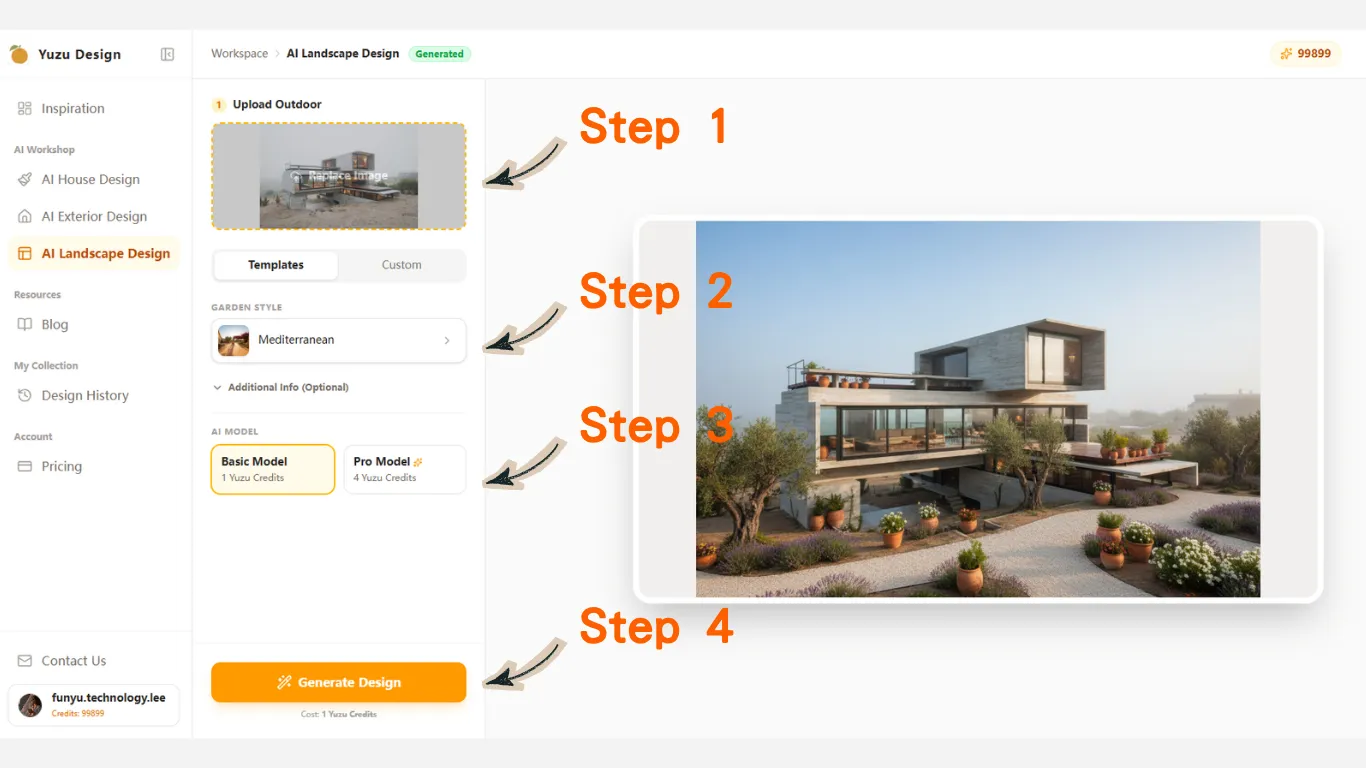
Pre-configured templates help keep the ratios between hardscape structures and planting zones realistic.
By selecting a curated style template on yuzudesign ai, the engine can lock in appropriate hardscape-to-softscape ratios before you refine the details.
Modern Organic Template
This template designates geometric zones for stone pavers while leaving distinct, continuous soil beds for natural greenery. It is useful when you want clean structure without making the yard feel overly formal.
Japandi Template
This template restricts the material palette to specific elements like gravel, dark slate, timber, and structurally compatible focal trees. It works well for calm, low-clutter outdoor spaces where every material needs a clear role.
Xeriscaping Template
This template balances permeable gravel aggregates with localized planting pockets meant for low-water landscapes. It is especially useful for dry climates, water-conscious yards, and front gardens where maintenance needs to stay low.
Using templates prevents the AI from generating chaotic, unconstructible spatial arrangements, giving you a clean and structurally sound foundation.
Step 3: Switch to Custom Mode to Solve Site-Specific Constraints
Once you have a structural baseline, you must address the unique physical realities of your plot, such as local laws, HOA guidelines, shade, soil conditions, and regional climate.
Custom Mode gives you direct control over the rendering engine through technical prompting parameters.
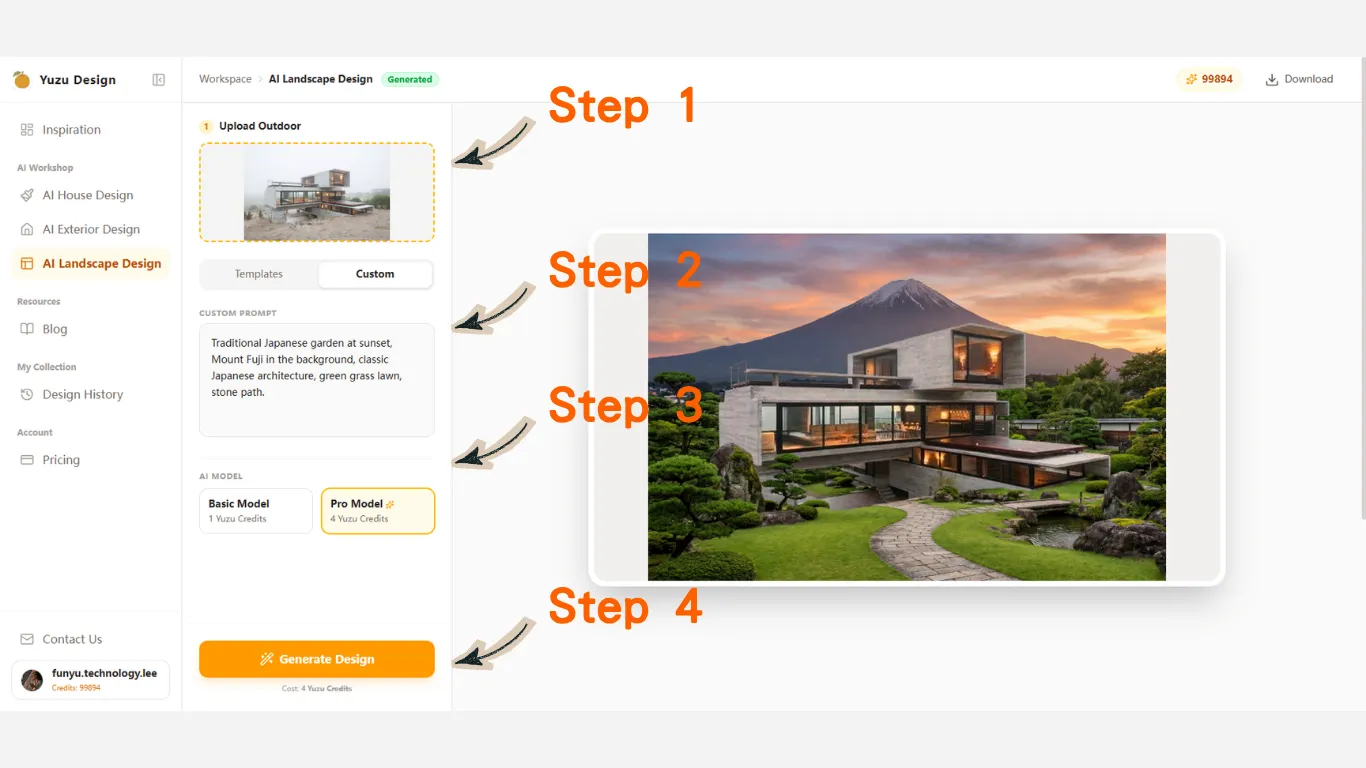
Use specific technical parameters to control materials, local climate compatibility, and sun exposure.
To solve real-world constraints using ai landscaping design from photo, structure your custom prompts with three precise data points.
1. Enforce Local Climate Data
Never use vague instructions like "beautiful garden." Input your specific climate zone and planting logic:
A low-maintenance backyard layout optimized for USDA Hardiness Zone 7, utilizing native ornamental grasses and lavender.
This helps push the AI toward plants that can survive winter lows, summer heat, and seasonal changes in your area.
2. Define Strict Material Boundaries
Clearly separate hardscape components to prevent texture bleeding:
A rectangular dark gray slate stone patio on the left side, bounded by a smooth concrete retaining wall.
The goal is to make every material edge legible. A contractor should be able to see where the patio ends, where soil begins, and which zones require masonry, gravel, turf, mulch, or planting.
3. Account for Solar Exposure and Shadows
Factor in existing light conditions caused by your house, fence, trees, or neighboring structures:
A shade-tolerant softscape design for a north-facing yard, incorporating hostas, ferns, and soft ambient string lighting.
This keeps the AI from placing sun-loving plants in deep shade or suggesting layouts that only look good under unrealistic lighting.
Step 4: Translate the AI Output into a Contractor Blueprint
The final step in using AI for landscape design is turning the digital image into a physical project.
An AI rendering is not a final construction document, but it is an efficiency tool. Take your generated before-and-after design variations to a local landscape contractor. Because the AI layout already respects structural boundaries, hardscape zones, and climate-specific plants, the contractor can quickly understand the scope of work, provide a more accurate material cost estimate, and bypass much of the expensive conceptual drafting phase.
For the best handoff, save two or three variations: one conservative layout, one style-forward layout, and one budget-conscious layout. This gives your contractor room to compare trade-offs without restarting the design conversation from scratch.
Conclusion
Successfully using AI for landscape design requires moving away from random image generation and toward structured data input. By using Templates Mode to secure layout proportions and Custom Mode to enforce real-world environmental boundaries, you can create a realistic, actionable plan for your property.
To configure your outdoor layout, upload your property image to the yuzudesign ai landscape design dashboard and select the operational mode that matches your project stage.
Yuzu Design
Visualize Your Yard with AI
Explore garden layouts, pathways, and planting directions from a single outdoor photo.
Start Landscape DesignContinue reading